

はじめに:AIでテスト設計はどこまで自動化できる?
システム開発において、テスト設計は品質を担保するために不可欠ですが、膨大な時間と労力を要する作業です。
「この単調だが重要なプロセスを、AIで効率化できないか?」
今回は、ノーコードAI開発プラットフォーム「Dify」のワークフロー機能を活用して、仕様書と画面キャプチャからテストケースを自動生成するシステムを構築してみました。実際のフロー構築手順から、直面した課題までを詳しくレポートします。
作成したDifyワークフローの全体像
今回構築したのは、ユーザーとの対話形式で段階的にテスト設計を進める「チャットフロー」です。
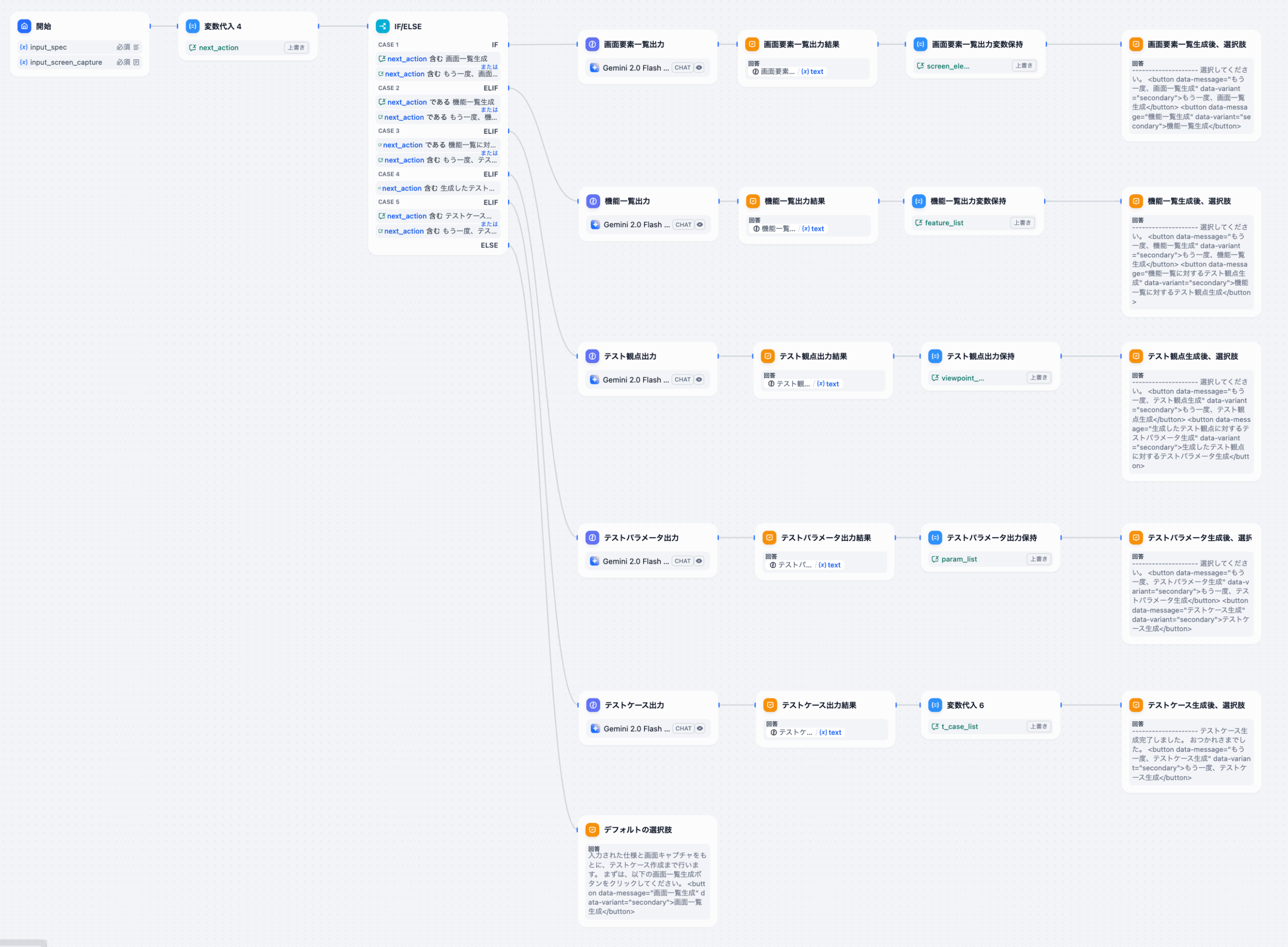
処理の流れ
- 入力受付:仕様テキストと画面キャプチャ画像をアップロード。
- 画面要素の抽出:画像認識AI(Gemini等)が画面構成要素をリスト化。
- 機能一覧の生成:仕様書に基づき、実装すべき機能を抽出。
- テスト観点の抽出:要素と機能から「何をテストすべきか」を定義。
- テストケース生成:最終的なテスト手順と期待値を生成。
各ステップごとにAIが生成結果を提示し、ユーザーが「次のステップへ進む」かを確認しながら進行するインタラクティブな設計にしています。
作成したDSLファイル(Dify_テスト設計_テストケース生成.yml)
app:
description: ”
icon: 🤖
icon_background: ‘#FFEAD5’
mode: advanced-chat
name: テスト設計_テストケース生成
use_icon_as_answer_icon: false
kind: app
version: 0.1.4
workflow:
conversation_variables:
– description: テストケース一覧
id: 9a86e100-2057-4992-9e46-651540192fd7
name: t_case_list
selector:
– conversation
– t_case_list
value: ”
value_type: string
– description: テストパラメータ一覧
id: 3246c217-c7aa-458c-a1ea-7bb25698dc9f
name: param_list
selector:
– conversation
– param_list
value: ”
value_type: string
– description: テスト観点一覧
id: 277b7523-4fd3-46f1-81c0-5d00745d16de
name: viewpoint_list
selector:
– conversation
– viewpoint_list
value: ”
value_type: string
– description: 状態遷移
id: 096f1c65-1898-42d1-ae12-bae19fc155ae
name: next_action
selector:
– conversation
– next_action
value: ”
value_type: string
– description: 画面要素一覧
id: 0e036fd9-0997-4f9c-bcbf-06558027c135
name: screen_element_list
selector:
– conversation
– screen_element_list
value: ”
value_type: string
– description: 機能一覧
id: a9d543f0-ff34-4a7e-a40d-cbf492463f6f
name: feature_list
selector:
– conversation
– feature_list
value: ”
value_type: string
environment_variables: []
features:
file_upload:
allowed_file_extensions: []
allowed_file_types:
– image
allowed_file_upload_methods:
– remote_url
– local_file
enabled: true
fileUploadConfig:
audio_file_size_limit: 50
batch_count_limit: 5
file_size_limit: 15
image_file_size_limit: 10
video_file_size_limit: 100
workflow_file_upload_limit: 10
image:
enabled: false
number_limits: 3
transfer_methods:
– local_file
– remote_url
number_limits: 1
opening_statement: ‘入力された仕様と画面キャプチャをもとに、テストケース作成まで行います。
まずは、以下の画面一覧生成ボタンをクリックしてください。
‘
retriever_resource:
enabled: true
sensitive_word_avoidance:
enabled: false
speech_to_text:
enabled: false
suggested_questions:
– 画面一覧生成
suggested_questions_after_answer:
enabled: false
text_to_speech:
enabled: false
language: ”
voice: ”
graph:
edges:
– data:
isInIteration: false
sourceType: start
targetType: assigner
id: 1734882123186-source-1734909585250-target
source: ‘1734882123186’
sourceHandle: source
target: ‘1734909585250’
targetHandle: target
type: custom
zIndex: 0
– data:
isInIteration: false
sourceType: assigner
targetType: if-else
id: 1734909585250-source-1734883081327-target
source: ‘1734909585250’
sourceHandle: source
target: ‘1734883081327’
targetHandle: target
type: custom
zIndex: 0
– data:
isInIteration: false
sourceType: if-else
targetType: llm
id: 1734883081327-6ed6dfa5-3474-49c9-8da7-459426522fdf-1734909965396-target
selected: false
source: ‘1734883081327’
sourceHandle: 6ed6dfa5-3474-49c9-8da7-459426522fdf
target: ‘1734909965396’
targetHandle: target
type: custom
zIndex: 0
– data:
isInIteration: false
sourceType: llm
targetType: answer
id: 1734909965396-source-1734910118014-target
selected: false
source: ‘1734909965396’
sourceHandle: source
target: ‘1734910118014’
targetHandle: target
type: custom
zIndex: 0
– data:
isInIteration: false
sourceType: answer
targetType: assigner
id: 1734910118014-source-1734910146390-target
selected: false
source: ‘1734910118014’
sourceHandle: source
target: ‘1734910146390’
targetHandle: target
type: custom
zIndex: 0
– data:
isInIteration: false
sourceType: assigner
targetType: answer
id: 1734910146390-source-1734910253093-target
selected: false
source: ‘1734910146390’
sourceHandle: source
target: ‘1734910253093’
targetHandle: target
type: custom
zIndex: 0
– data:
isInIteration: false
sourceType: if-else
targetType: llm
id: 1734883081327-3a3fe0bb-6cac-40b6-9fe7-bdc22064f5ee-1734910923644-target
selected: false
source: ‘1734883081327’
sourceHandle: 3a3fe0bb-6cac-40b6-9fe7-bdc22064f5ee
target: ‘1734910923644’
targetHandle: target
type: custom
zIndex: 0
– data:
isInIteration: false
sourceType: llm
targetType: answer
id: 1734910923644-source-1734910994385-target
selected: false
source: ‘1734910923644’
sourceHandle: source
target: ‘1734910994385’
targetHandle: target
type: custom
zIndex: 0
– data:
isInIteration: false
sourceType: answer
targetType: assigner
id: 1734910994385-source-1734911008790-target
selected: false
source: ‘1734910994385’
sourceHandle: source
target: ‘1734911008790’
targetHandle: target
type: custom
zIndex: 0
– data:
isInIteration: false
sourceType: assigner
targetType: answer
id: 1734911008790-source-1734911042068-target
selected: false
source: ‘1734911008790’
sourceHandle: source
target: ‘1734911042068’
targetHandle: target
type: custom
zIndex: 0
– data:
isInIteration: false
sourceType: if-else
targetType: llm
id: 1734883081327-718eb363-0ba4-406e-9aae-0670f6a61184-1734911491539-target
source: ‘1734883081327’
sourceHandle: 718eb363-0ba4-406e-9aae-0670f6a61184
target: ‘1734911491539’
targetHandle: target
type: custom
zIndex: 0
– data:
isInIteration: false
sourceType: llm
targetType: answer
id: 1734911491539-source-1734911821251-target
source: ‘1734911491539’
sourceHandle: source
target: ‘1734911821251’
targetHandle: target
type: custom
zIndex: 0
– data:
isInIteration: false
sourceType: answer
targetType: assigner
id: 1734911821251-source-1734911850028-target
source: ‘1734911821251’
sourceHandle: source
target: ‘1734911850028’
targetHandle: target
type: custom
zIndex: 0
– data:
isInIteration: false
sourceType: assigner
targetType: answer
id: 1734911850028-source-1734911867817-target
source: ‘1734911850028’
sourceHandle: source
target: ‘1734911867817’
targetHandle: target
type: custom
zIndex: 0
– data:
isInIteration: false
sourceType: if-else
targetType: llm
id: 1734883081327-66c3c458-fa2a-459a-b498-09de4b3c8363-17349128841430-target
source: ‘1734883081327’
sourceHandle: 66c3c458-fa2a-459a-b498-09de4b3c8363
target: ‘17349128841430’
targetHandle: target
type: custom
zIndex: 0
– data:
isInIteration: false
sourceType: llm
targetType: answer
id: 17349128841430-source-1734913055934-target
source: ‘17349128841430’
sourceHandle: source
target: ‘1734913055934’
targetHandle: target
type: custom
zIndex: 0
– data:
isInIteration: false
sourceType: answer
targetType: assigner
id: 1734913055934-source-1734913097530-target
source: ‘1734913055934’
sourceHandle: source
target: ‘1734913097530’
targetHandle: target
type: custom
zIndex: 0
– data:
isInIteration: false
sourceType: assigner
targetType: answer
id: 1734913097530-source-1734913260201-target
source: ‘1734913097530’
sourceHandle: source
target: ‘1734913260201’
targetHandle: target
type: custom
zIndex: 0
– data:
isInIteration: false
sourceType: if-else
targetType: answer
id: 1734883081327-false-1734913948560-target
source: ‘1734883081327’
sourceHandle: ‘false’
target: ‘1734913948560’
targetHandle: target
type: custom
zIndex: 0
– data:
isInIteration: false
sourceType: if-else
targetType: llm
id: 1734883081327-2bde175c-4c1e-4ef3-bd7f-56bc7a27e278-1734914010896-target
source: ‘1734883081327’
sourceHandle: 2bde175c-4c1e-4ef3-bd7f-56bc7a27e278
target: ‘1734914010896’
targetHandle: target
type: custom
zIndex: 0
– data:
isInIteration: false
sourceType: llm
targetType: answer
id: 1734914010896-source-1734914386666-target
source: ‘1734914010896’
sourceHandle: source
target: ‘1734914386666’
targetHandle: target
type: custom
zIndex: 0
– data:
isInIteration: false
sourceType: answer
targetType: assigner
id: 1734914386666-source-1734914434614-target
source: ‘1734914386666’
sourceHandle: source
target: ‘1734914434614’
targetHandle: target
type: custom
zIndex: 0
– data:
isInIteration: false
sourceType: assigner
targetType: answer
id: 1734914434614-source-1734914455754-target
source: ‘1734914434614’
sourceHandle: source
target: ‘1734914455754’
targetHandle: target
type: custom
zIndex: 0
nodes:
– data:
desc: ”
selected: false
title: 開始
type: start
variables:
– label: 入力仕様
max_length: 10000
options: []
required: true
type: paragraph
variable: input_spec
– allowed_file_extensions: []
allowed_file_types:
– image
allowed_file_upload_methods:
– local_file
label: 入力画面キャプチャ
max_length: 5
options: []
required: true
type: file
variable: input_screen_capture
height: 116
id: ‘1734882123186’
position:
x: -46.1470377373233
y: 282
positionAbsolute:
x: -46.1470377373233
y: 282
selected: false
sourcePosition: right
targetPosition: left
type: custom
width: 244
– data:
cases:
– case_id: 3a3fe0bb-6cac-40b6-9fe7-bdc22064f5ee
conditions:
– comparison_operator: contains
id: 4ef27e7e-1cf5-48e2-a44a-c0d97db9f932
value: 画面一覧生成
varType: string
variable_selector:
– conversation
– next_action
– comparison_operator: contains
id: cff7d926-c715-4609-8764-8457a5af0d45
value: もう一度、画面一覧生成
varType: string
variable_selector:
– conversation
– next_action
id: 3a3fe0bb-6cac-40b6-9fe7-bdc22064f5ee
logical_operator: or
– case_id: 6ed6dfa5-3474-49c9-8da7-459426522fdf
conditions:
– comparison_operator: is
id: dfa2aed5-0dc7-4ac4-a482-3c3dc11cf6d5
value: 機能一覧生成
varType: string
variable_selector:
– conversation
– next_action
– comparison_operator: is
id: 911bc4ff-fc05-406d-8bc8-32a52e991a49
value: もう一度、機能一覧生成
varType: string
variable_selector:
– conversation
– next_action
id: 6ed6dfa5-3474-49c9-8da7-459426522fdf
logical_operator: or
– case_id: 718eb363-0ba4-406e-9aae-0670f6a61184
conditions:
– comparison_operator: is
id: 3e87d7b5-7d62-4df3-a50f-90e7f42cfe07
value: 機能一覧に対するテスト観点生成
varType: string
variable_selector:
– conversation
– next_action
– comparison_operator: contains
id: 86ea092f-72c1-4b30-bb78-e99a013904ae
value: もう一度、テスト観点生成
varType: string
variable_selector:
– conversation
– next_action
id: 718eb363-0ba4-406e-9aae-0670f6a61184
logical_operator: or
– case_id: 66c3c458-fa2a-459a-b498-09de4b3c8363
conditions:
– comparison_operator: contains
id: 8af5a6c4-913e-466b-846e-13e7afa4891a
value: 生成したテスト観点に対するテストパラメータ生成
varType: string
variable_selector:
– conversation
– next_action
id: 66c3c458-fa2a-459a-b498-09de4b3c8363
logical_operator: and
– case_id: 2bde175c-4c1e-4ef3-bd7f-56bc7a27e278
conditions:
– comparison_operator: contains
id: 21252cd2-28c1-4d22-b924-5562e04def12
value: テストケース生成
varType: string
variable_selector:
– conversation
– next_action
– comparison_operator: contains
id: 3fe56f82-7bd5-4d97-b78c-9206449123bb
value: もう一度、テストケース生成
varType: string
variable_selector:
– conversation
– next_action
logical_operator: or
desc: ”
selected: false
title: IF/ELSE
type: if-else
height: 422
id: ‘1734883081327’
position:
x: 569.0333746700601
y: 282
positionAbsolute:
x: 569.0333746700601
y: 282
selected: false
sourcePosition: right
targetPosition: left
type: custom
width: 244
– data:
desc: ”
items:
– input_type: variable
operation: over-write
value:
– sys
– query
variable_selector:
– conversation
– next_action
write_mode: over-write
selected: false
title: 変数代入 4
type: assigner
version: ‘2’
height: 88
id: ‘1734909585250’
position:
x: 242.69498217545402
y: 282
positionAbsolute:
x: 242.69498217545402
y: 282
selected: false
sourcePosition: right
targetPosition: left
type: custom
width: 244
– data:
context:
enabled: false
variable_selector: []
desc: ”
model:
completion_params:
temperature: 0.7
mode: chat
name: gemini-2.0-flash-exp
provider: google
prompt_template:
– id: f431bbc8-e1d7-4d8f-8352-0484b93fd92b
role: system
text: ”
– id: 79a144c4-d98c-4eae-9846-70b9f9858078
role: user
text: ‘以下の仕様と添付の画像から機能一覧を作成してください。
マークダウンの表で出力してください。
カラムは、カテゴリ、画面要素、機能内容、機能重要度の4つです。
カテゴリはできるだけ分けてください。
画面要素は、画面要素一覧の情報を参照してください。
機能重要度は「高」「中」「低」の3つです。
プロンプト以外のことは出力しないでください。
画面要素一覧:
{{#conversation.screen_element_list#}}’
selected: false
title: 機能一覧出力
type: llm
variables: []
vision:
configs:
detail: high
variable_selector:
– ‘1734882123186’
– input_screen_capture
enabled: true
height: 98
id: ‘1734909965396’
position:
x: 930.1717357497632
y: 582.6201404255845
positionAbsolute:
x: 930.1717357497632
y: 582.6201404255845
selected: true
sourcePosition: right
targetPosition: left
type: custom
width: 244
– data:
answer: ‘{{#1734909965396.text#}}’
desc: ”
selected: false
title: 機能一覧出力結果
type: answer
variables: []
height: 103
id: ‘1734910118014’
position:
x: 1204.5070557140898
y: 582.6201404255845
positionAbsolute:
x: 1204.5070557140898
y: 582.6201404255845
selected: false
sourcePosition: right
targetPosition: left
type: custom
width: 244
– data:
desc: ”
items:
– input_type: variable
operation: over-write
value:
– ‘1734909965396’
– text
variable_selector:
– conversation
– feature_list
write_mode: over-write
selected: false
title: 機能一覧出力変数保持
type: assigner
version: ‘2’
height: 88
id: ‘1734910146390’
position:
x: 1489.2063239801194
y: 582.6201404255845
positionAbsolute:
x: 1489.2063239801194
y: 582.6201404255845
selected: false
sourcePosition: right
targetPosition: left
type: custom
width: 244
– data:
answer: ‘
——————–
選択してください。
<button data-message=”もう一度、機能一覧生成” data-variant=”secondary”>もう一度、機能一覧生成</button>
<button data-message=”機能一覧に対するテスト観点生成” data-variant=”secondary”>機能一覧に対するテスト観点生成</button>
‘
desc: ”
selected: false
title: 機能一覧生成後、選択肢
type: answer
variables: []
height: 228
id: ‘1734910253093’
position:
x: 1862.1596804082328
y: 582.6201404255845
positionAbsolute:
x: 1862.1596804082328
y: 582.6201404255845
selected: false
sourcePosition: right
targetPosition: left
type: custom
width: 244
– data:
context:
enabled: false
variable_selector: []
desc: ”
model:
completion_params:
temperature: 0.7
mode: chat
name: gemini-2.0-flash-exp
provider: google
prompt_template:
– id: edb347c0-9e8f-4a41-bab0-e2705c25b3da
role: system
text: ”
– id: 63f18be9-8645-4184-8645-d87f381ac3ac
role: user
text: ‘添付した画像から、画面要素一覧を作成してください。
カラムは、種類、画面要素名、詳細説明の3カラムのマークダウンの表で出力してください。すべてのカラムは必須です。画面要素名が無記入にならないようにしてください。画面要素は記号は使用しないでください。プロンプト以外のことは出力しないでください。’
selected: false
title: 画面要素一覧出力
type: llm
variables: []
vision:
configs:
detail: high
variable_selector:
– ‘1734882123186’
– input_screen_capture
enabled: true
height: 98
id: ‘1734910923644’
position:
x: 928.764203597636
y: 313.01800101584945
positionAbsolute:
x: 928.764203597636
y: 313.01800101584945
selected: false
sourcePosition: right
targetPosition: left
type: custom
width: 244
– data:
answer: ‘{{#1734910923644.text#}}’
desc: ”
selected: false
title: 画面要素一覧出力結果
type: answer
variables: []
height: 103
id: ‘1734910994385’
position:
x: 1203.0995235619625
y: 313.01800101584945
positionAbsolute:
x: 1203.0995235619625
y: 313.01800101584945
selected: false
sourcePosition: right
targetPosition: left
type: custom
width: 244
– data:
desc: ”
items:
– input_type: variable
operation: over-write
value:
– ‘1734910923644’
– text
variable_selector:
– conversation
– screen_element_list
write_mode: over-write
selected: false
title: 画面要素一覧出力変数保持
type: assigner
version: ‘2’
height: 88
id: ‘1734911008790’
position:
x: 1492.0213882843736
y: 313.01800101584945
positionAbsolute:
x: 1492.0213882843736
y: 313.01800101584945
selected: false
sourcePosition: right
targetPosition: left
type: custom
width: 244
– data:
answer: ‘
——————–
選択してください。
<button data-message=”もう一度、画面一覧生成” data-variant=”secondary”>もう一度、画面一覧生成</button>
<button data-message=”機能一覧生成” data-variant=”secondary”>機能一覧生成</button>
‘
desc: ”
selected: false
title: 画面要素一覧生成後、選択肢
type: answer
variables: []
height: 196
id: ‘1734911042068’
position:
x: 1862.1596804082328
y: 313.01800101584945
positionAbsolute:
x: 1862.1596804082328
y: 313.01800101584945
selected: false
sourcePosition: right
targetPosition: left
type: custom
width: 244
– data:
context:
enabled: false
variable_selector: []
desc: ”
model:
completion_params:
temperature: 0.7
mode: chat
name: gemini-2.0-flash-exp
provider: google
prompt_template:
– id: aa3c083b-615a-4458-bf44-d30501ebea1e
role: system
text: テスト設計のプロ
– id: 06112797-b3e4-4db8-a78a-cf57186d6c91
role: user
text: ‘機能一覧に対するテスト観点を追加してください。
機能一覧のマークダウンの表へテスト観点カラムを追加し内容を記載してください。プロンプト以外のことは出力しないでください。
機能一覧:
{{#conversation.feature_list#}}
‘
selected: false
title: テスト観点出力
type: llm
variables: []
vision:
enabled: false
height: 98
id: ‘1734911491539’
position:
x: 928.764203597636
y: 848.6298491562329
positionAbsolute:
x: 928.764203597636
y: 848.6298491562329
selected: false
sourcePosition: right
targetPosition: left
type: custom
width: 244
– data:
answer: ‘{{#1734911491539.text#}}’
desc: ”
selected: false
title: テスト観点出力結果
type: answer
variables: []
height: 103
id: ‘1734911821251’
position:
x: 1229.9917412297825
y: 848.6298491562329
positionAbsolute:
x: 1229.9917412297825
y: 848.6298491562329
selected: false
sourcePosition: right
targetPosition: left
type: custom
width: 244
– data:
desc: ”
items:
– input_type: variable
operation: over-write
value:
– ‘1734911491539’
– text
variable_selector:
– conversation
– viewpoint_list
write_mode: over-write
selected: false
title: テスト観点出力保持
type: assigner
version: ‘2’
height: 88
id: ‘1734911850028’
position:
x: 1517.3569670226632
y: 848.6298491562329
positionAbsolute:
x: 1517.3569670226632
y: 848.6298491562329
selected: false
sourcePosition: right
targetPosition: left
type: custom
width: 244
– data:
answer: ‘
——————–
選択してください。
<button data-message=”もう一度、テスト観点生成” data-variant=”secondary”>もう一度、テスト観点生成</button>
<button data-message=”生成したテスト観点に対するテストパラメータ生成” data-variant=”secondary”>生成したテスト観点に対するテストパラメータ生成</button>’
desc: ”
selected: false
title: テスト観点生成後、選択肢
type: answer
variables: []
height: 244
id: ‘1734911867817’
position:
x: 1862.1596804082328
y: 848.6298491562329
positionAbsolute:
x: 1862.1596804082328
y: 848.6298491562329
selected: false
sourcePosition: right
targetPosition: left
type: custom
width: 244
– data:
context:
enabled: false
variable_selector: []
desc: ”
model:
completion_params:
temperature: 0.7
mode: chat
name: gemini-2.0-flash-exp
provider: google
prompt_template:
– id: aa3c083b-615a-4458-bf44-d30501ebea1e
role: system
text: テスト設計のプロ
– id: 06112797-b3e4-4db8-a78a-cf57186d6c91
role: user
text: ‘
テスト観点一覧に対するテテストパラメータを追加してください。テスト観点一覧のマークダウンの表へテストパラメータカラムを追加し内容を記載してください。プロンプト以外のことは出力しないでください。
テスト観点一覧:
{{#conversation.viewpoint_list#}}’
selected: false
title: テストパラメータ出力
type: llm
variables: []
vision:
enabled: false
height: 98
id: ‘17349128841430’
position:
x: 928.764203597636
y: 1160.1861749221493
positionAbsolute:
x: 928.764203597636
y: 1160.1861749221493
selected: false
sourcePosition: right
targetPosition: left
type: custom
width: 244
– data:
answer: ‘{{#17349128841430.text#}}’
desc: ”
selected: false
title: テストパラメータ出力結果
type: answer
variables: []
height: 103
id: ‘1734913055934’
position:
x: 1232.764203597636
y: 1160.1861749221493
positionAbsolute:
x: 1232.764203597636
y: 1160.1861749221493
sourcePosition: right
targetPosition: left
type: custom
width: 244
– data:
desc: ”
items:
– input_type: variable
operation: over-write
value:
– ‘17349128841430’
– text
variable_selector:
– conversation
– param_list
write_mode: over-write
selected: false
title: テストパラメータ出力保持
type: assigner
version: ‘2’
height: 88
id: ‘1734913097530’
position:
x: 1517.3569670226632
y: 1160.1861749221493
positionAbsolute:
x: 1517.3569670226632
y: 1160.1861749221493
selected: false
sourcePosition: right
targetPosition: left
type: custom
width: 244
– data:
answer: ‘——————–
選択してください。
<button data-message=”もう一度、テストパラメータ生成” data-variant=”secondary”>もう一度、テストパラメータ生成</button>
<button data-message=”テストケース生成” data-variant=”secondary”>テストケース生成</button>’
desc: ”
selected: false
title: テストパラメータ生成後、選択肢
type: answer
variables: []
height: 212
id: ‘1734913260201’
position:
x: 1862.1596804082328
y: 1160.1861749221493
positionAbsolute:
x: 1862.1596804082328
y: 1160.1861749221493
selected: false
sourcePosition: right
targetPosition: left
type: custom
width: 244
– data:
answer: ‘入力された仕様と画面キャプチャをもとに、テストケース作成まで行います。
まずは、以下の画面一覧生成ボタンをクリックしてください。
<button data-message=”画面一覧生成” data-variant=”secondary”>画面一覧生成</button>’
desc: ”
selected: false
title: デフォルトの選択肢
type: answer
variables: []
height: 196
id: ‘1734913948560’
position:
x: 928.764203597636
y: 1662.0008909345959
positionAbsolute:
x: 928.764203597636
y: 1662.0008909345959
selected: false
sourcePosition: right
targetPosition: left
type: custom
width: 244
– data:
context:
enabled: false
variable_selector: []
desc: ”
model:
completion_params:
temperature: 0.7
mode: chat
name: gemini-2.0-flash-exp
provider: google
prompt_template:
– id: a3f3d837-e2af-436f-b1da-0a728c354a0c
role: system
text: テスト設計のプロ
– id: 2b2d7e2f-3762-4445-93c8-182b12a8a4d5
role: user
text: ‘画面要素一覧とテストパラメータ一覧をもとにテストケースを作成してください。マークダウンの表で出力してください。
確認内容と期待結果が一行になるようにテストケースを出力してください。
カラムは、カテゴリ、重要度、確認内容、期待結果の4つです。期待結果一つに対して一行追加してください。
プロンプト以外のことは出力しないでください。
画面要素一覧:
{{#conversation.screen_element_list#}}
テストパラメータ一覧:
{{#conversation.param_list#}}’
selected: false
title: テストケース出力
type: llm
variables: []
vision:
enabled: false
height: 98
id: ‘1734914010896’
position:
x: 930.1717357497632
y: 1447.6154907556277
positionAbsolute:
x: 930.1717357497632
y: 1447.6154907556277
selected: false
sourcePosition: right
targetPosition: left
type: custom
width: 244
– data:
answer: ‘{{#1734914010896.text#}}’
desc: ”
selected: false
title: テストケース出力結果
type: answer
variables: []
height: 103
id: ‘1734914386666’
position:
x: 1234.1717357497632
y: 1447.6154907556277
positionAbsolute:
x: 1234.1717357497632
y: 1447.6154907556277
sourcePosition: right
targetPosition: left
type: custom
width: 244
– data:
desc: ”
items:
– input_type: variable
operation: over-write
value:
– ‘1734914010896’
– text
variable_selector:
– conversation
– t_case_list
write_mode: over-write
selected: false
title: 変数代入 6
type: assigner
version: ‘2’
height: 88
id: ‘1734914434614’
position:
x: 1517.3569670226632
y: 1447.6154907556277
positionAbsolute:
x: 1517.3569670226632
y: 1447.6154907556277
selected: false
sourcePosition: right
targetPosition: left
type: custom
width: 244
– data:
answer: ‘——————–
テストケース生成完了しました。
おつかれさまでした。
<button data-message=”もう一度、テストケース生成” data-variant=”secondary”>もう一度、テストケース生成</button>
‘
desc: ”
selected: false
title: テストケース生成後、選択肢
type: answer
variables: []
height: 180
id: ‘1734914455754’
position:
x: 1862.1596804082328
y: 1447.6154907556277
positionAbsolute:
x: 1862.1596804082328
y: 1447.6154907556277
selected: false
sourcePosition: right
targetPosition: left
type: custom
width: 244
viewport:
x: 385.0474250183278
y: 208.3395238440388
zoom: 0.3125891476052153
実践:ログイン画面のテストケースを作ってみる
一般的なWebログイン画面を題材に、実際にワークフローを動かしてみます。
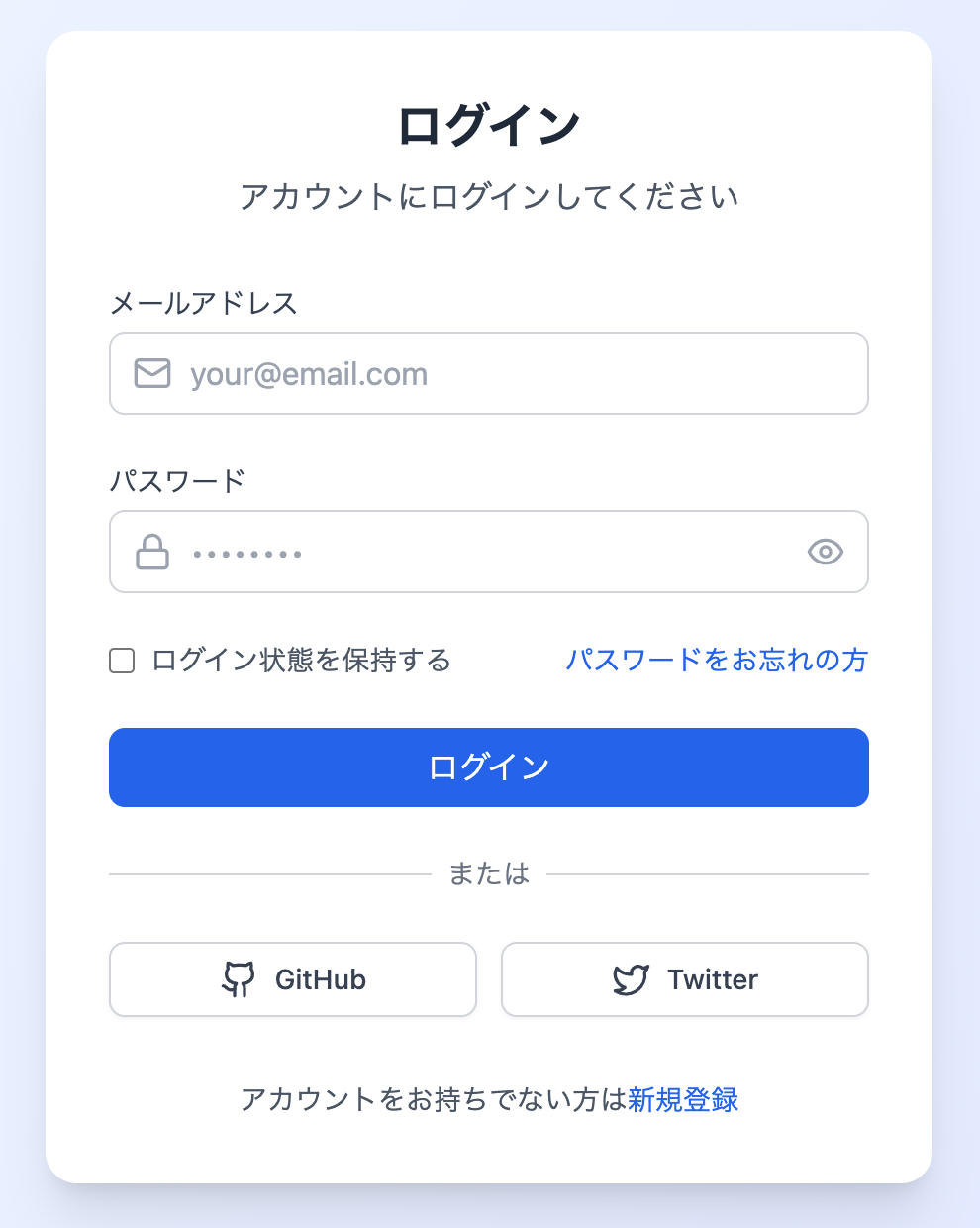
1. インプット情報の準備
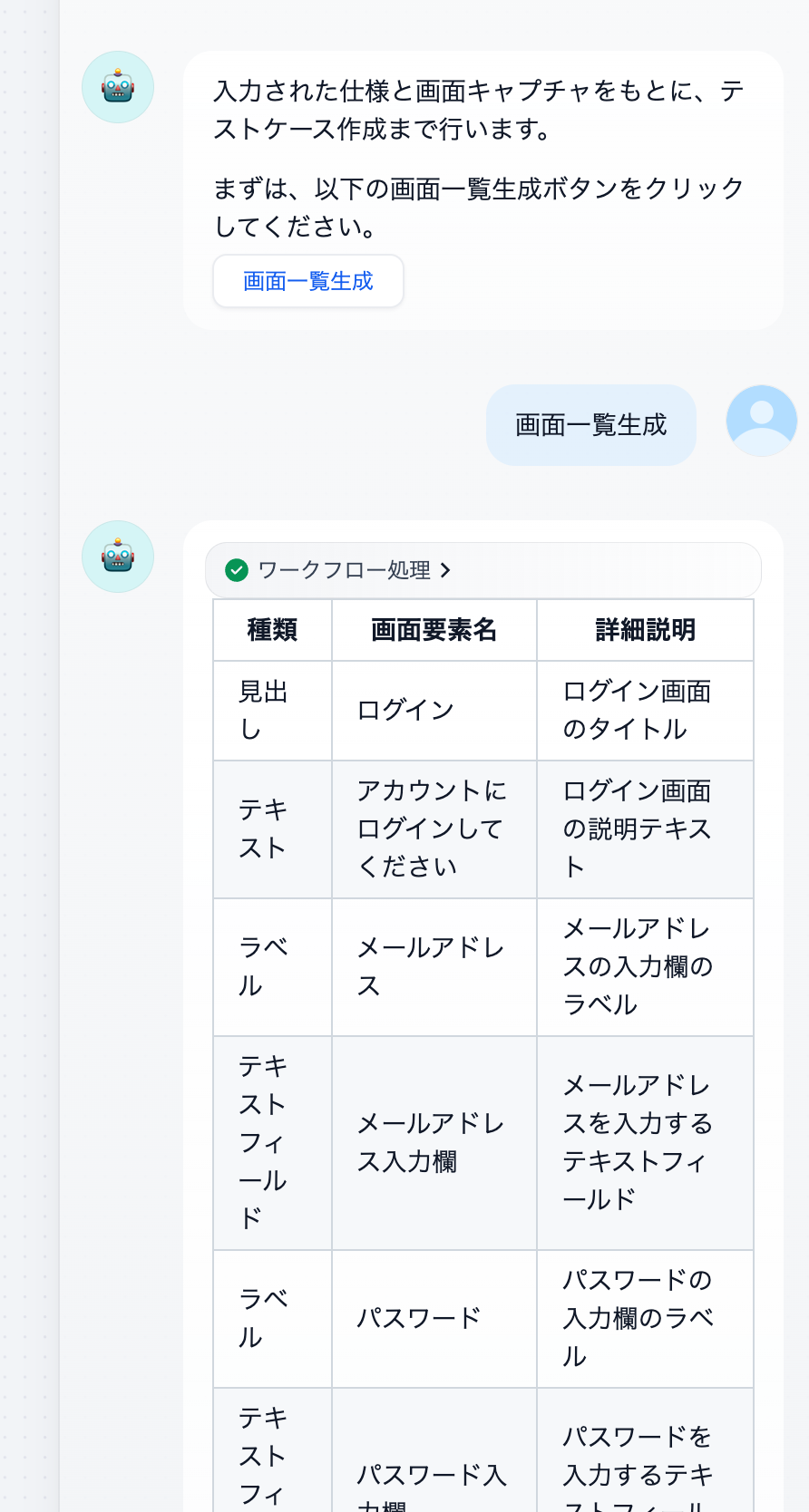
以下の画面キャプチャと、対応する仕様書(Markdownテキスト)をDifyに入力します。
2. 実行と生成結果
「画面一覧生成」ボタンを押すと、AIが画像を解析し、入力フォームやボタンなどの要素を正確にリストアップしてくれました。
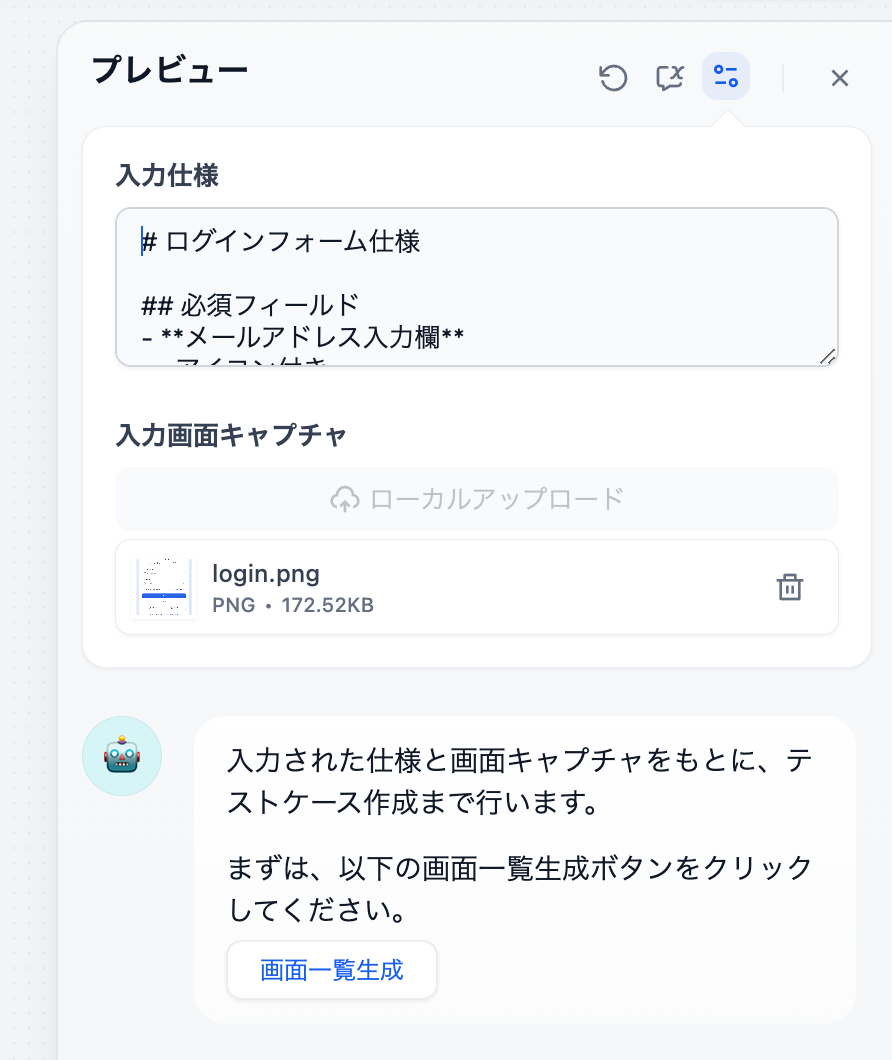
続いて「次へ」を選択していくことで、機能一覧、テスト観点、そして最終的なテストケースまでスムーズに生成されました。
Difyワークフロー構築で感じた「壁」
非常に便利なDifyですが、複雑な業務フローを組む上ではいくつか課題も感じました。
- ファイル出力の難しさ: 生成されたテストケースをExcelやCSVでダウンロードしたかったのですが、Dify単体でのファイル生成・保存機能の実装には工夫が必要でした(PythonコードブロックでPandasを使っても、保存先フォルダの権限等でつまずく場合あり)。
- 画像の柔軟な扱い: フローの途中から新しい画像をアップロードして変数に格納するような動的な処理が難しく、今回は最初にまとめてアップロードする仕様にしました。
- データの修正フロー: AIが生成したデータを人間が手動で修正し、その修正データを次のステップに渡すような「Human-in-the-loop」なフロー構築は、現在のUIでは少々複雑になります。
まとめ:業務効率化ツールとしてのDifyの可能性
課題はありつつも、「仕様書と画像からテスト設計書のドラフトを数分で作成できる」という効果は絶大です。
Difyはローカル環境でも動作し、Pythonコードの実行も可能なため、セキュリティを重視する企業の社内ツールとしても非常に有力な選択肢となります。
今後、Difyのバージョンアップでファイル出力やフロー制御がさらに柔軟になれば、開発現場の「必須ツール」になるポテンシャルを秘めていると感じました。
【推奨】業務システム化に有効なアイテム
生成AIを学ぶ

システム化のパートナー(ミラーマスター合同会社)



VPSサーバの選定

コメント